Classroom Timer
A big, free countdown for the board — plus ready-made routines like think–pair–share that run each step for you, with a question to talk about. Full screen, nothing to install, no sign-up.
One countdown, any length.
Space start / pause · R reset · F full screen · N new question · ↑ ↓ change minutes
Timer Routines for the Classroom
A plain countdown tells students how long they have. A routine also tells them what to do. Pick one above and the timer runs each step for you, with a chime when it is time to switch.
💬 Think–Pair–Share (4:00)
- Think (1:00): Think quietly about your answer. No talking yet.
- Pair (2:00): Turn to your partner. Each person shares; listen without interrupting.
- Share (1:00): A few pairs share with the whole class.
🗣️ Group discussion (3:00)
- Discuss (2:00): Talk it over in your group. Everyone speaks at least once.
- Report (1:00): One reporter per group shares the group's answer.
✏️ Quick write (5:00)
- Write (5:00): Write until the timer ends. Don't stop to erase — keep your pencil moving.
🤸 Brain break (1:00)
- Move (1:00): Stand up and follow the activity. Freeze when the timer ends.
🧹 Clean-up countdown (2:00)
- Clean up (2:00): Put supplies away, push in chairs, check the floor around you.
How Long Should a Classroom Timer Be?
- 30 seconds–1 minute: think time, a quick vote, lining up, a brain break.
- 2–3 minutes: partner talk, clean-up, a warm-up question on the board.
- 5 minutes: a quick write, a bell-ringer, a short group task.
- 10–20 minutes: independent work, centers and stations, a test section.
A good rule for younger students: about one to two minutes of focused work per year of age, then a short break. Show the timer where everyone can see it, say the instruction once, and let the timer do the reminding.
12 One-Minute Brain Breaks
- Do 10 jumping jacks, then stretch up to the ceiling.
- Freeze dance: dance until the teacher says freeze.
- Simon says, with only silly moves.
- Touch your toes, then your shoulders, then your head — repeat faster.
- March in place and count to 30 together.
- Balance on one foot for 15 seconds, then switch.
- Pretend to swim, fly, then climb a ladder.
- Shake out your hands, arms, legs and feet, five times each.
- Mirror a partner's slow movements.
- Do the robot, then the noodle (stiff, then floppy).
- Five deep breaths: smell the flower, blow out the candle.
- Pass a silent wave around the room as fast as you can.
Need something to talk about while the timer runs? Try a morning meeting question, a riddle for kids or a would you rather question. To call on students, use the random name picker.
Frequently Asked Questions
Is this classroom timer free?
Yes. The timer, every routine, the questions and full-screen mode are free with no sign-up and no download. It runs in any browser on a laptop, interactive whiteboard, Chromebook or phone.
How do I make the timer full screen on the board?
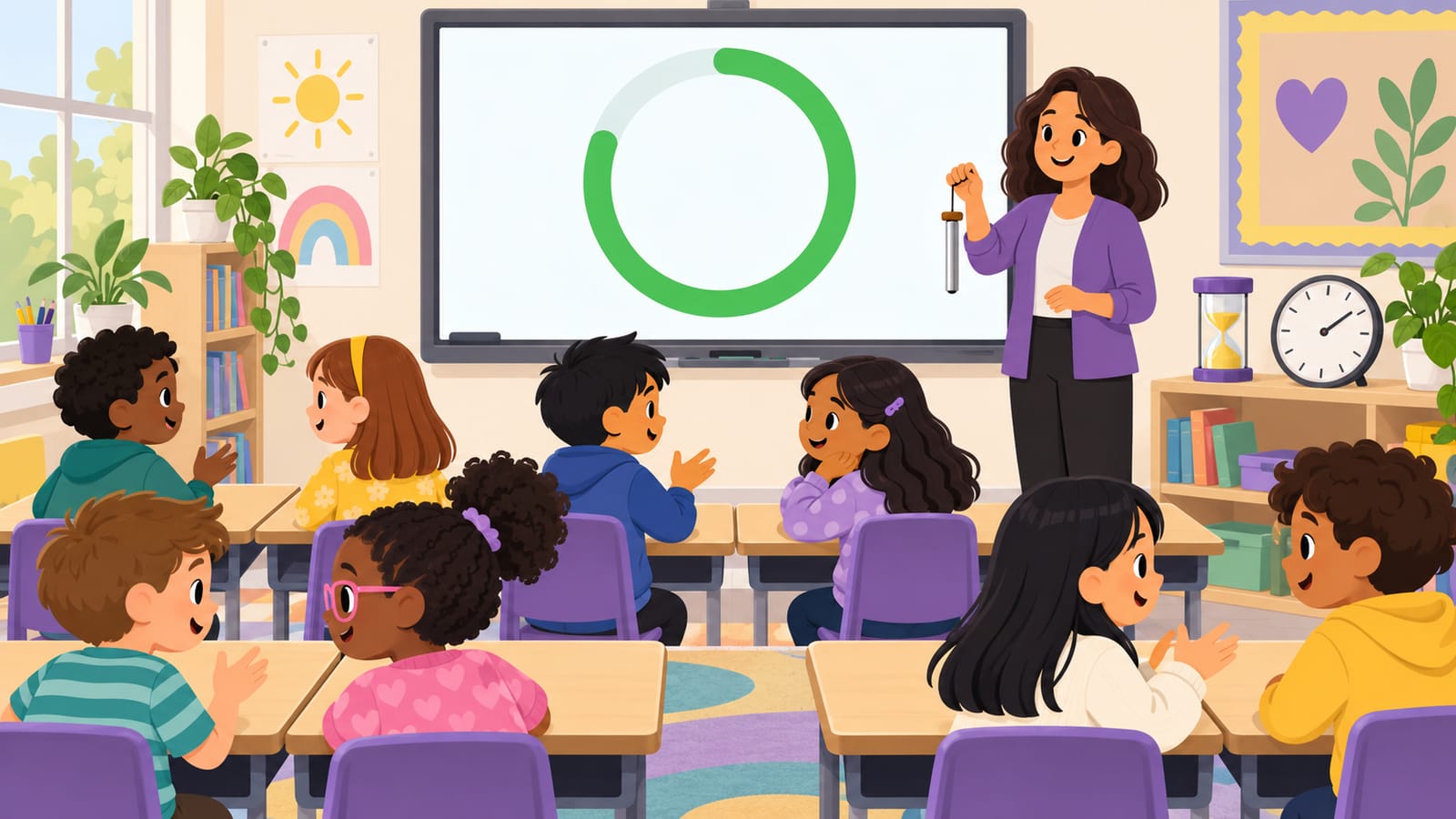
Press “Full screen for the board” or the F key. The countdown fills the screen with a color ring that goes green, then yellow, then red as time runs out. Press Esc or Close to go back.
Does the timer keep counting if I switch tabs?
Yes. The timer counts against the clock, not against the page, so it stays accurate if you open your slides or another tab. The remaining time also shows in the browser tab title.
What is a think–pair–share timer?
Think–pair–share is a three-step discussion routine: students think alone (1 minute), talk with a partner (2 minutes), then a few pairs share with the class (1 minute). The routine here runs all three steps back to back with a chime between them and shows a question to talk about.
Can I turn the sound off?
Yes. Use the “Sound on / Sound off” button. With sound on, three short beeps play when each step ends. The sound is made in your browser, so it works offline once the page is open.
What keyboard shortcuts does the timer have?
Space starts and pauses, R resets, F opens full screen, N shows a new question, and the up and down arrows add or take away a minute before you start.
More free classroom tools
Every tool works on the board in projector mode or on a phone — no sign-up.
🧑🏫 For teachers · classroom pack
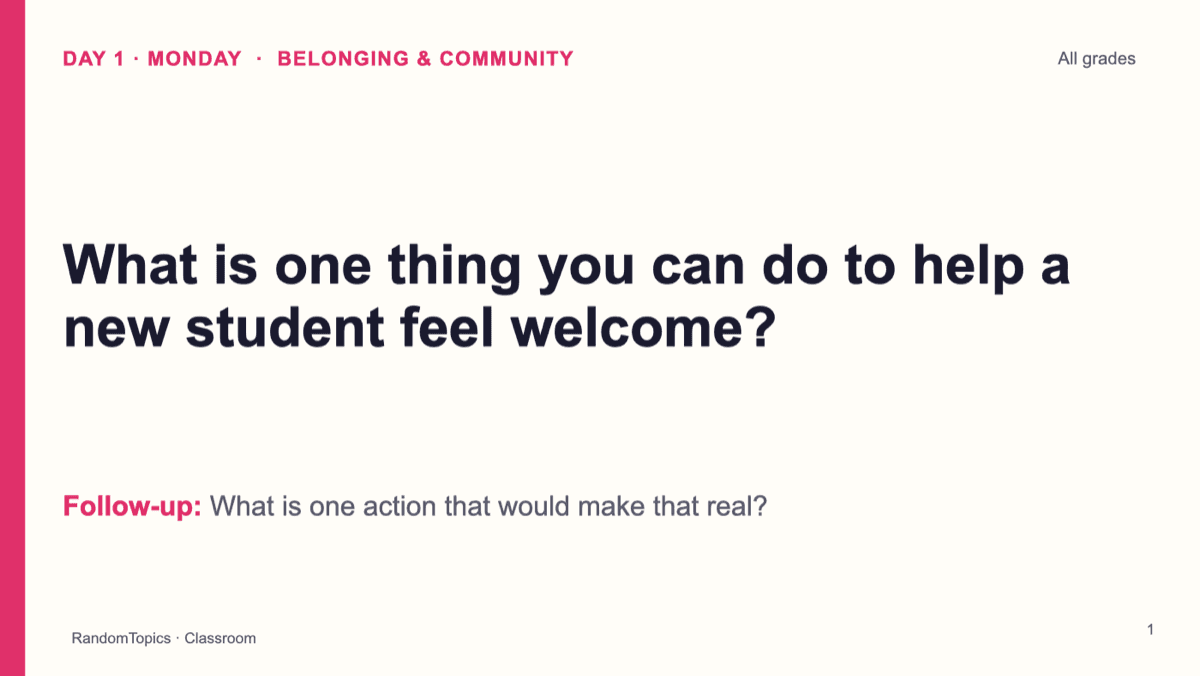
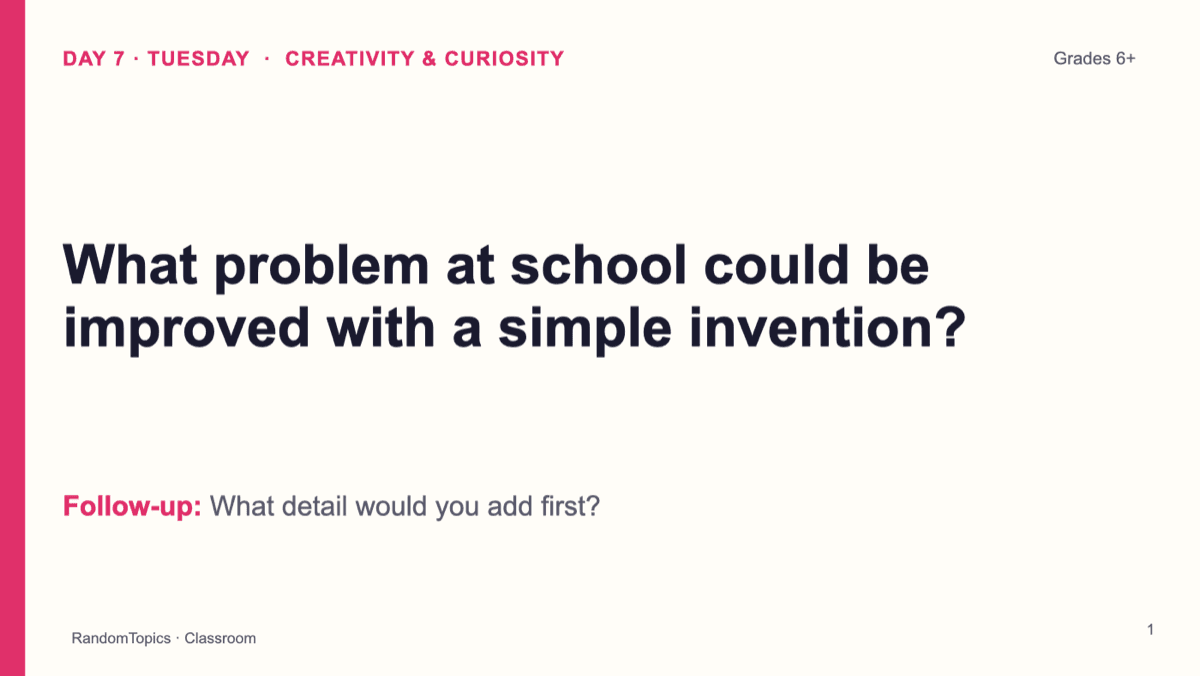
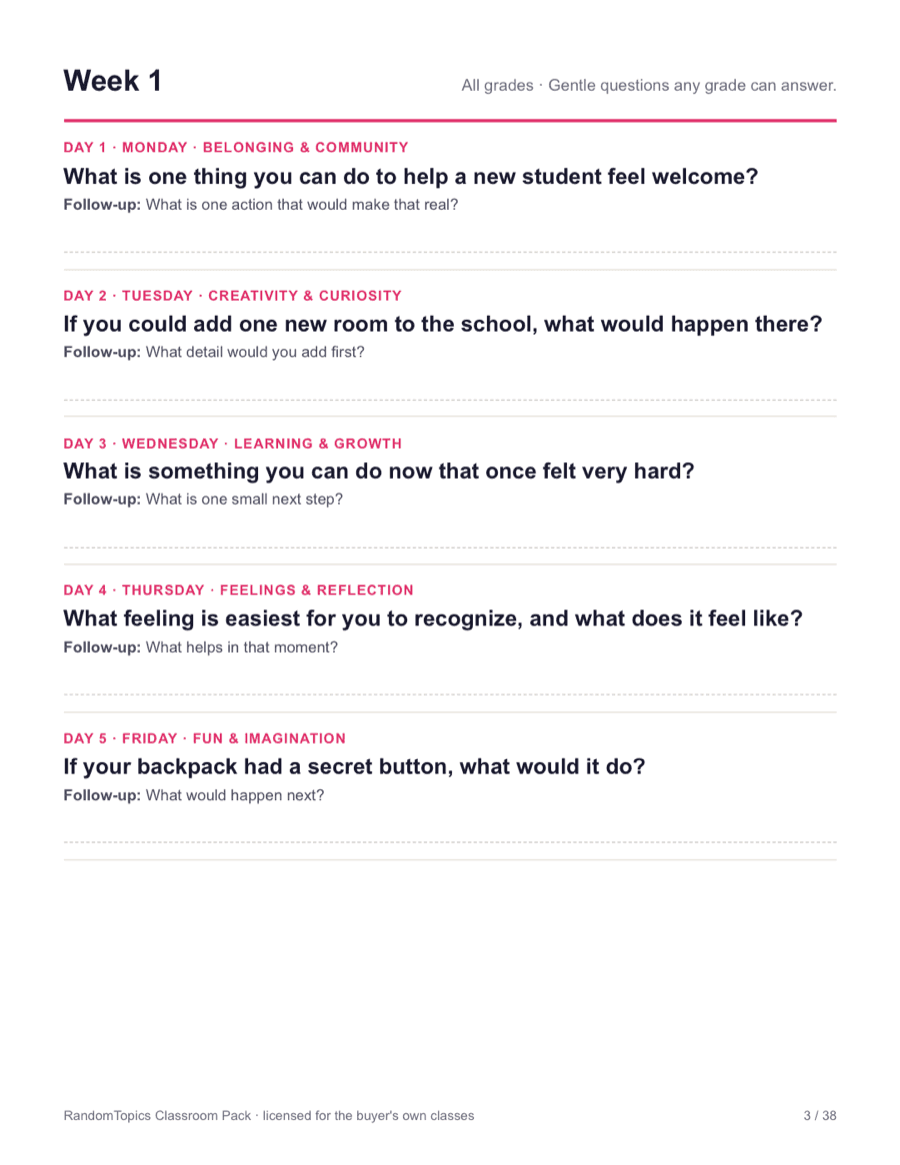
Question of the Day — 180 Days for the School Year
A bell-ringer for every school day: 36 weeks of themed questions (Community Monday to Fun Friday), each with a follow-up.
- ✓ Editable PPTX (opens in Google Slides)
- ✓ Printable PDF
- ✓ Ad-free full-screen presenter
One-time payment · no subscription · instant PPTX + PDF download · ad-free presenter mode. All packs includes every pack we add later.
See every classroom pack and the FAQ · Try the presenter with 5 free slides · Already bought? Your downloads